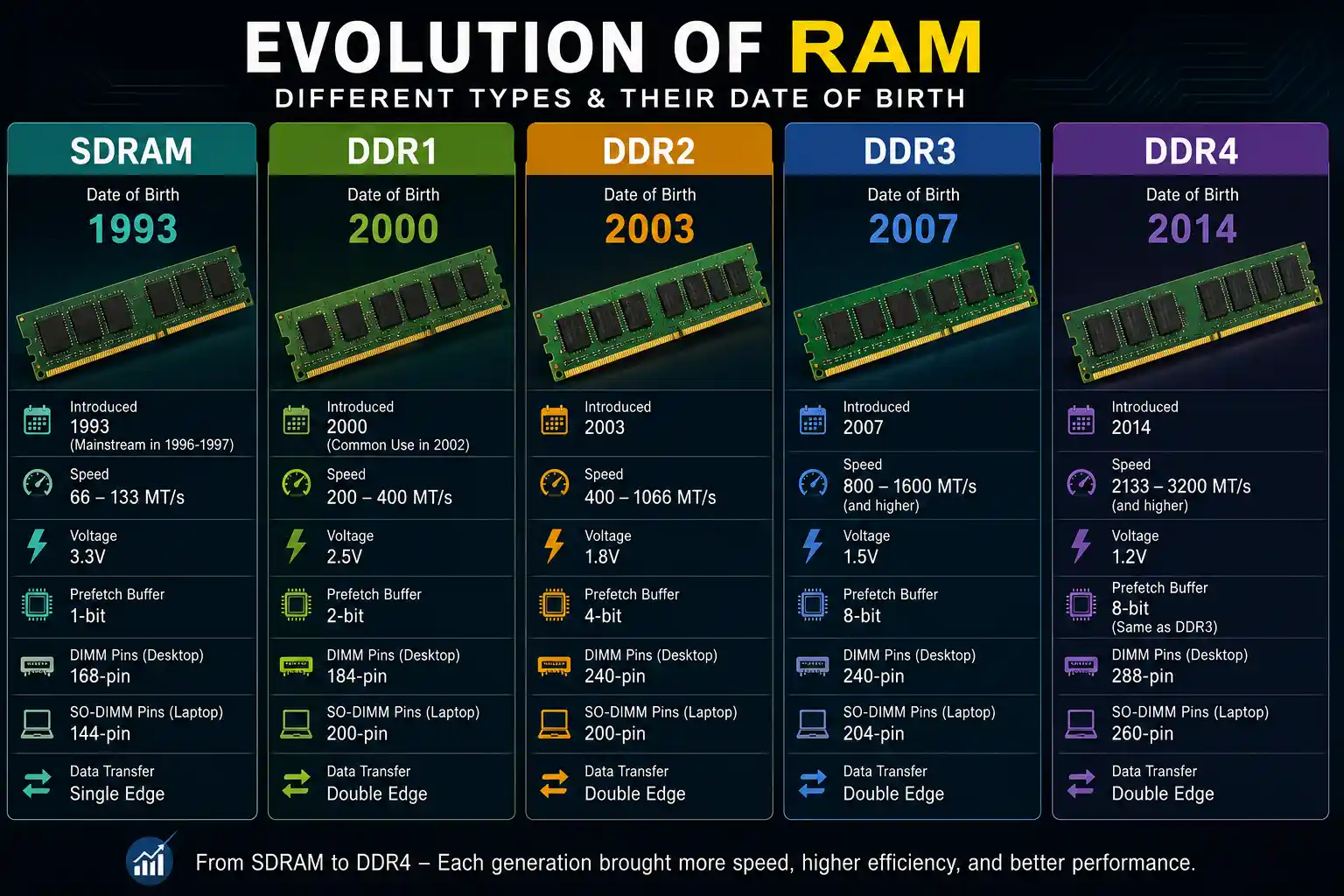
If you want to buy RAM for your laptop or PC, you may see names like SDRAM, DDR1, DDR2, DDR3, and DDR4. These are different types of computer memory. But how are they different? In this article, we will explain each type in simple words.
1. What is RAM and Why It Is Important
RAM (Random Access Memory) is a type of temporary memory in your computer. When you open an app, game, or browser, some of its data is stored in RAM so the computer can access it quickly. More RAM helps when you use several programs at the same time. Faster RAM can also help improve performance.
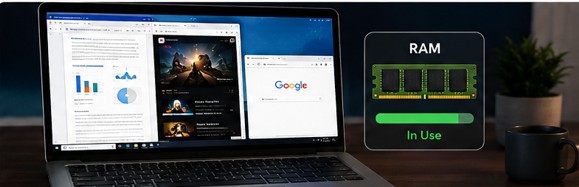
RAM technology has changed a lot over the years. After SDRAM, we got DDR1, DDR2, DDR3, and DDR4. DDR5 is now also available in newer computers. Each generation improved the speed and power efficiency of RAM.
SDRAM stands for Synchronous Dynamic Random Access Memory. It was introduced around 1993 and became mainstream in personal computers by 1996-1997.
Synchronous means that SDRAM works with the system clock. Its operations are timed with the clock. Older RAM types before SDRAM were asynchronous, which means they did not work with the system clock in the same way.
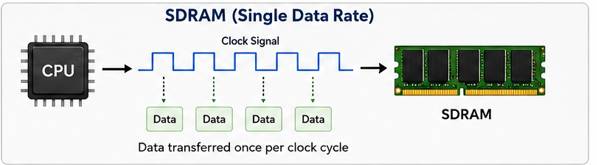
Simple point to remember: SDRAM can only send or receive one piece of data in one clock cycle. This is why it is also called Single Data Rate (SDR) RAM.
3. What is DDR RAM and How It Is Different from SDRAM
DDR stands for Double Data Rate. DDR RAM is basically an improved version of SDRAM.
The main difference is simple:
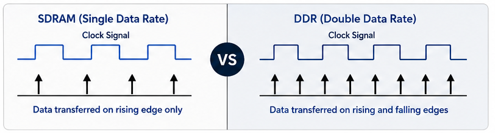
• SDRAM sends data only on the rising edge of the clock signal (one action per cycle).
• DDR RAM sends data on both the rising edge AND the falling edge of the clock signal (two actions per cycle).
This means DDR RAM can move twice as much data in the same amount of time, without increasing the clock speed. This is why DDR RAM is much faster than normal SDRAM.
After DDR came out, it also got new versions: DDR2, DDR3, and DDR4. Each version improved speed and reduced power use.
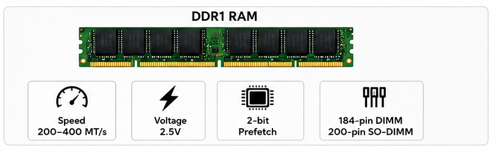
4. DDR1 (First Generation DDR RAM)
DDR1 was launched in the year 2000, but people commonly started using it around 2002.
Key features of DDR1:
• Speed range: 200 MT/s to 400 MT/s (MT/s means Mega Transfers per second)
• Operating voltage: around 2.5V
• Uses a 2-bit prefetch buffer (this means it can prepare 2 bits of data per internal clock cycle)
• Pin count: 184-pin for normal DIMM (used in desktop PC), 200-pin for SO-DIMM (used in laptops)
DDR1 was a big step forward from SDRAM because it doubled the data transfer speed.
5. DDR2 (Second Generation DDR RAM)
DDR2 came after DDR1 and improved things further.
Key features of DDR2:
• Speed range: 400 MT/s to 1066 MT/s
• Operating voltage: around 1.8V (less power than DDR1)
• Uses a 4-bit prefetch buffer (double of DDR1)
• Pin count: 240-pin for DIMM, 200-pin for SO-DIMM
DDR2 runs the external data bus two times faster than DDR1, while using less electricity. This made it a better choice for both performance and battery life in laptops.
6. DDR3 (Third Generation DDR RAM)
DDR3 became popular and stayed in the market for a long time. Many people still use DDR3 laptops and PCs today.
Key features of DDR3:
• Speed range: 800 MT/s to 1600 MT/s (some versions go higher)
• Operating voltage: around 1.5V (lower voltage than DDR2, which also reduces power consumption)
• Uses an 8-bit prefetch buffer (double of DDR2)
• Pin count: 240-pin for DIMM, 204-pin for SO-DIMM
DDR3 was a good balance between speed and power saving, which is why it remained popular for many years.
7. DDR4 (Fourth Generation DDR RAM)
DDR4 is the RAM type used in most modern laptops and computers today (though DDR5 is now also coming in newer machines).
Key features of DDR4:
• Speed range: 2133 MT/s to 3200 MT/s (and even higher in some modules)
• Operating voltage: around 1.2V (lowest among DDR1-DDR4)
• Comes with extra features like DBI (Data Bus Inversion) and CRC (Cyclic Redundancy Check) that help keep data safe and accurate
• Pin count: 288-pin for DIMM, 260-pin for SO-DIMM
DDR4 is much faster and more power-efficient compared to all the older versions, which is why it became the standard for many years.
8. Comparison Table: SDRAM vs DDR1 vs DDR2 vs DDR3 vs DDR4
|
Feature |
SDRAM |
DDR1 |
DDR2 |
DDR3 |
DDR4 |
|
Launch Year |
1996-1997 |
2000 |
2003 |
2007 |
2014 |
|
Speed |
66-133 MT/s |
200-400 MT/s |
400-1066 MT/s |
800-1600 MT/s |
2133-3200 MT/s |
|
Voltage |
3.3V |
2.5V |
1.8V |
1.5V |
1.2V |
|
Prefetch Buffer |
1-bit |
2-bit |
4-bit |
8-bit |
8-bit (same as DDR3) |
|
DIMM Pins (Desktop) |
168-pin |
184-pin |
240-pin |
240-pin |
288-pin |
|
SO-DIMM Pins (Laptop) |
144-pin |
200-pin |
200-pin |
204-pin |
260-pin |
|
Data Transfer |
Single edge |
Double edge |
Double edge |
Double edge |
Double edge |
|
Power Efficiency |
Low |
Better than SDRAM |
Better than DDR1 |
Better than DDR2 |
Best of all |
9. Physical Differences (Pins and Notch Position)
Each RAM type has a small cut called a notch on its connector. The notch is in a different place on each RAM generation.
Each RAM generation has a different notch position. This stops you from putting the wrong RAM into a slot. Desktop RAM (DIMM) and laptop RAM (SO-DIMM) are also different in size and pin count, so they do not fit in the same slots. For example, DDR3 cannot fit in a DDR2 or DDR4 slot. DDR4 also cannot fit in a DDR3 slot. Using the wrong RAM can cause problems because different RAM types may use different voltages.
10. How to Check Which RAM Is Installed in Your Laptop or PC
If you want to know whether your computer has DDR3, DDR4, or another type of RAM, you do not need to open the computer. You can check it using CMD (Command Prompt) in Windows.
Method 1: Using CMD (Command Prompt)
1. Press Windows + R to open the Run box.
2. Type cmd and press Enter. This will open Command Prompt.
3. Type the following command and press Enter:
wmic memorychip get BankLabel, Capacity, MemoryType, Speed, DeviceLocator
This command can show the RAM size, speed, and slot location. However, "MemoryType" shows a number code, not the name directly — here is what the common numbers mean::
• 20 = DDR
• 21 = DDR2
• 24 = DDR3
• 26 = DDR4
Note: WMIC is deprecated in newer Windows versions, including Windows 11 23H2 and later, and may sometimes show 0 for newer RAM types. If you get the wrong result, use Method 2 (PowerShell) below instead.
Method 2: Using PowerShell (Easier and Clearer)
1. Press Windows + X and select Windows PowerShell (or Windows Terminal).
2. Type the following command and press Enter:
Get-CimInstance -ClassName Win32_PhysicalMemory | Select-Object BankLabel, Capacity, Speed, SMBIOSMemoryType
This will also give you similar information about your RAM.
Method 3: Using Task Manager (No CMD Needed)
1. Press Ctrl + Shift + Esc to open Task Manager.
2. Click on the Performance tab.
3. Click on Memory on the left side.
4. You will see the RAM type (like DDR3 or DDR4) written near the top of that window, along with speed and slots used.
Method 4: Using Third-Party Software (Most Detailed)
For more RAM details like the brand, model, voltage, and timings, you can use the free CPU-Z tool. Download and install it from the official website. Then open the Memory tab to check your RAM type, speed, and other technical details.
11. Can You Upgrade Your RAM from One Type to Another?
This is a common question, so let’s clear the confusion:
You cannot mix DDR3 and DDR4 RAM on the same motherboard. For example, a laptop that supports DDR3 RAM cannot use DDR4 RAM. The notch position is also different, so DDR4 normally will not fit in a DDR3 slot.
If you want to upgrade from DDR3 to DDR4, you will need a motherboard that supports DDR4. In many cases, you may also need a new CPU. So, you cannot just replace the RAM stick. Always check your motherboard manual or specifications before buying new RAM.
12. Frequently Asked Questions (FAQs)
Q1: Which is the fastest RAM among SDRAM, DDR1, DDR2, DDR3, and DDR4?
DDR4 is the fastest among these five, with speeds up to 3200 MT/s or more.
Q2: Is DDR4 RAM backward compatible with DDR3 slots?
No. DDR4 RAM cannot be used in a DDR3 slot, and DDR3 RAM cannot be used in a DDR4 slot. Each generation has a different notch position and voltage requirement.
Q3: Why does new DDR RAM use less power than older versions?
Each new generation uses a lower operating voltage (SDRAM used 3.3V, but DDR4 uses only 1.2V). Lower voltage means less power consumption and less heat.
Q4: How can I know if my computer supports DDR3 or DDR4?
You can check this using the CMD or PowerShell commands mentioned above, or by using Task Manager or CPU-Z software.
Q5: Is SDRAM still used in modern computers?
No, SDRAM (Single Data Rate) is outdated and not used in any modern computer or laptop today. Modern devices use DDR4 or DDR5.
Q6: What comes after DDR4?
DDR5 is the next generation after DDR4. It offers even higher speed and lower power consumption, and it is now used in newer laptops and PCs.
13. Conclusion
In short, RAM technology has improved a lot over the years. After SDRAM, we got DDR1, DDR2, DDR3, and DDR4, with improvements in speed and power use. If you want to buy new RAM, first check which type your motherboard supports, such as DDR3 or DDR4. You can use CMD or Task Manager to check this. This will help you choose the correct RAM for your computer.
Read more about
SEO Instant Appear HighSoftware99.com best Ranking Guide